
Scripting with iTunes artwork
October 3, 2009 at 4:50 PM by Dr. Drang
Mac oldtimers remember PICTs. No, not Picts, PICTs. It was the QuickDraw library’s all-purpose graphics format, handling both bitmapped (i.e., MacPaint) and object-oriented (i.e., MacDraw) graphics. Back in the day, every Mac graphics program had a way of importing or exporting PICTs. But PICTs have fallen on hard times. The only program that seems to use them anymore is iTunes; if you want to write a script the moves artwork into or out of an iTunes track, you’ll have to deal with PICTs.
Wait, you may be thinking, I’ve added artwork to iTunes a million times, and I’ve never had to deal with a PICT. I just drag a JPG or a PNG into that well in the lower left corner of iTunes, and it gets assigned to the track. No PICT conversion necessary.
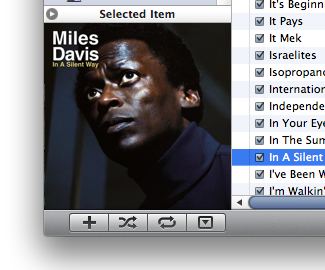
That’s certainly true, but as far as I know it doesn’t work that way when you want to add artwork to a track via a script.
I ran into this problem earlier this week. I wanted to add artwork to my BBC Radio 2 recordings (first discussed here, then again here when I created a GitHub repository for the scripts). I grabbed parts of the web page art for the shows I record and tried to figure out a way to save them as the track artwork via AppleScript. After much Googling, I decided the only way was to first turn the images, which I had in PNG format, into PICTs.

I figured Preview would do the conversion, but it can’t handle PICTs under Snow Leopard unless it’s launched in 32-bit mode. As I said, the PICT format, once the universal solvent of Mac graphics, is on the skids. But there’s a simple AppleScript way to convert images to PICTs through the Image Events application:
tell application "Image Events"
  set coverArt to open file "/Users/drang/Pictures/bbc/jukebox.png"
  save coverArt as PICT in (file "Users/drang/Pictures/bbc/jukebox.pict")
end tell
With the artwork saved as PICT files, the final trick in setting a track’s iTunes artwork is learning that you have to ignore the first 512 bytes of the file’s data. This is apparently header information that iTunes won’t accept. You need to do something like this
set theArt to read (POSIX file "/Users/drang/Pictures/bbc/jukebox.pict") from 513 as picture
tell application "iTunes"
  set theTrack to item 1 of selection
  set data of artwork 1 of theTrack to theArt
end tell
Read the file after the 512-byte header and use that to set the artwork. And because AppleScript is such a wonderfully consistent and well-designed language, you can’t just set artwork 1 of the track, you have to set the data of artwork 1 of the track. It’s so English-like!
(If you’re wondering why I’m doing this in AppleScript instead of Python with appscript, it’s because this is going to be used in scripts called by Audio Hijack Pro, and AHP can only call AppleScripts.)
So now all my regular Radio 2 recordings will have some artwork to display while they’re being played. All the scripts (and the artwork) are in my radio2 repository. While it’s unlikely you’d want to use the scripts as they are, you might find some bits and pieces you can use in your own scripts.