
Calendar events bundle for TextMate
January 7, 2010 at 1:13 PM by Dr. Drang
I think most users would agree that entering new events in iCal has always been clumsy and the Snow Leopard update just made it clumsier. I mentioned in a post last week that BusyCal’s entry method was distinctly better, although overall, BusyCal wasn’t enough of an improvement to get me to switch. In the past, I’ve used TextMate to create files using a simple pipe-separated format for the events; these are converted through a TM command into iCalendar files, which can be dragged to iCal to add the events. I’ve now improved that command and made a TextMate bundle for generating calendar events.
You can get the bundle from its GitHub repository. You install it by either
- copying it to the
Application Support/TextMate/Bundlesfolder in your personalLibraryfolder; or - double-clicking it, which should do the copying for you.
Although it’s not necessary, it would help if you also install my fork of the iCalendar bundle. This adds just one feature to the standard iCalendar bundle: it recognizes the file type based on a first line of BEGIN:VCALENDAR. This makes saving the generated iCalendar file with the proper extension a little bit easier.
To use the Calendar Events bundle, open a new document and press ⌃⌥⇧E to change the document’s language to Event. You now have two tab-triggered snippets available to enter events. For timed events, type “ev” and tab to get
Event|01/07/10 9:00 am|1.00|Location|Notes
This is the pipe-separated format for defining an event. The five fields are:
- The event name, which is the top line in the usual iCal event bubble.
- The event’s starting time, which is both a date and time. There are three TextMate tab stops within this field: one for the month and day, one for the year, and one for the time. The date parts default to the current date, and the time defaults to 9:00 am.
- The event’s duration in hours, which defaults to 1.
- The event’s location.
- Any other notes you may want to describe the event.
The location and notes fields may be blank, but the pipe characters between them must be present.
For all-day events, type “ad” and tab to get
Event|01/07/10|all day|Location|Notes
There is no time associated with the start of the event and therefore only two tab stops in this field. The duration is set to “all day” and is skipped over when tabbing through the snippet. The other three fields are the same as before.
When you’ve entered all the events, invoke the “Make ICS” command, either by choosing it from the gear popup menu at the bottom of the window or by typing ⌃⌥⌘C. That will generate a new document with the events transformed into the iCalendar format. If you’ve made a formatting error in the Events document, it will (probably) be flagged as such in the iCalendar document. Here’s an example in which
Project conf call|1/7/10 9:00 am|1.00|office|Pull drawings from file
All day event|1/20/10|all day||
Wrong # of fields|8/23/10 9:00 am|1.00|Location
Project meeting|1/10/10 10am|2|Chicago|Bring drawings
Bad start time|1/40/10 9:00 am|1.00|home|
Personal day|1/30/10|all day||
Bad duration|1/12/10 9:00 am|bad|office|whatever
Basketball|1/15/10 7pm|2|Stadium|
is transformed into
BEGIN:VCALENDAR
VERSION:2.0
BEGIN:VEVENT
DTSTART:20100107T090000
DTEND::20100107T100000
SUMMARY:Project conf call
LOCATION:office
DESCRIPTION:Pull drawings from file
END:VEVENT
BEGIN:VEVENT
DTSTART;VALUE=DATE:20100120
DTEND:;VALUE=DATE:20100121
SUMMARY:All day event
LOCATION:
DESCRIPTION:
END:VEVENT
!!!!!!!!!!!!!!!!!!!! This event has the wrong number of fields
BEGIN:VEVENT
DTSTART:20100110T100000
DTEND::20100110T120000
SUMMARY:Project meeting
LOCATION:Chicago
DESCRIPTION:Bring drawings
END:VEVENT
!!!!!!!!!!!!!!!!!!!! This event has a bad start time
BEGIN:VEVENT
DTSTART;VALUE=DATE:20100130
DTEND:;VALUE=DATE:20100131
SUMMARY:Personal day
LOCATION:
DESCRIPTION:
END:VEVENT
!!!!!!!!!!!!!!!!!!!! This event has a bad duration
BEGIN:VEVENT
DTSTART:20100115T190000
DTEND::20100115T210000
SUMMARY:Basketball
LOCATION:Stadium
DESCRIPTION:
END:VEVENT
END:VCALENDAR
On my system, the two documents look like this:
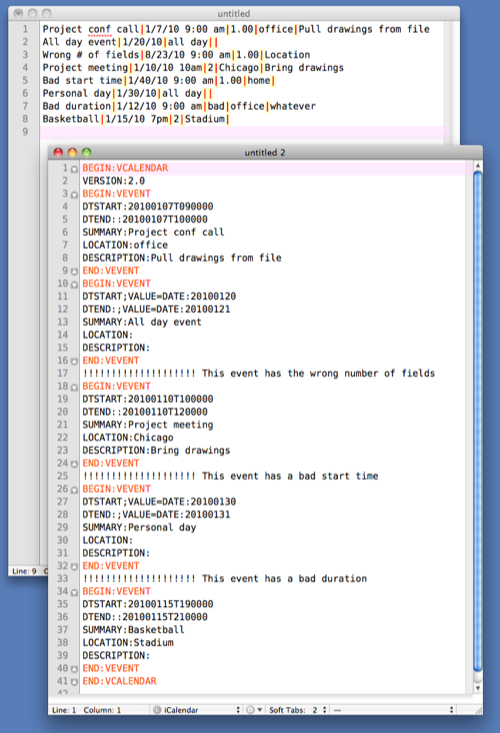
Because I have my iCalendar bundle installed, the generated document is automatically recognized as an iCalendar file and is syntax-highlighted appropriately. When I save it, the .ics extension will be present by default. If you don’t have my iCalendar bundle, TextMate won’t recognize it as an iCalendar file and you’ll have to change the extension from whatever your default is (probably .txt).
You’ll also notice that the pipe characters are colored in my Events document. That’s because I added an entry for tabular separators to the theme (IDLE) that I use.
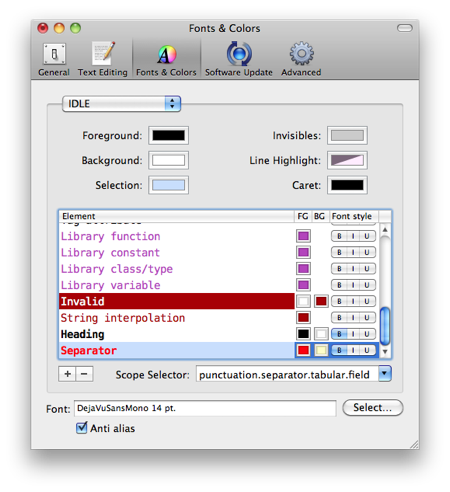
This highlighting will also work for CSV and TSV files if you have the Tabular bundle installed. If you want special highlighting for the field separators, just add a line with a scope of punctuation.separator.tabular.field to the theme you use. The highlighting isn’t a requirement; the snippets and command will work without it.
The Make ICS command uses the parse function from Python’s the datetimedateutil module to interpret the date and time in the second field. This is a fairly forgiving function; you don’t need to include leading zeros, and as you can see from the example above, even something like “7pm” is interpreted correctly.
Update 1/8/10
Not sure what I was thinking when I wrote datetime in the previous paragraph. The module used is dateutil, which isn’t a standard Python module. On my iMac, it’s in a subdirectory of /System/Library/Frameworks/Python.framework, which suggests that it’s supplied by Apple and not something I installed and later forgot about. I’ll look into it and update here when I get the answer…
OK, I’m back, and I’m pretty sure now that dateutils has been included by Apple since Leopard. So if you’re running OS X 10.5.x or 10.6.x, the Make ICS command will work. If you’re running 10.4.x or earlier, you have three choices. In decreasing order of desirability, they are:
- Upgrade to Leopard or Snow Leopard, i.e., get with the program. Look, my home computer is an iBook that came with Jaguar, and it’s perfectly happy with Leopard—I’d have upgraded it to Snow Leopard if it weren’t Intel-only. There’s no reason for you to be that far behind.
- Download
dateutilsfrom Labix and install it according to their directions. - Just don’t bother with the Calendar Events bundle at all.
I deliberately added errors to three lines in the Events document so you can see how they are handled. The position of the error messages in the iCalendar document will tell you which lines need to be fixed.
After saving the iCalendar document, you can drag it onto one of the calendar names in iCal to get all the events added to that calendar. iCal won’t accept a file with formatting errors, so if you forget to make the necessary corrections, iCal will tell you.
Is this faster than iCal’s normal entry method? Certainly not if you’re just adding one or two events. But if you need to add several events, especially when the events span several weeks or months, it’s much faster. I also find that I make fewer errors because I don’t get frustrated with all the keystrokes and/or mouse clicks iCal demands.