
iPhone ringtones flowchart
June 20, 2008 at 6:01 PM by Dr. Drang
I don’t convert songs to iPhone ringtones very often, so I made this flowchart to help me remember the process. And by posting it here, I’ll always know where it is. Oddly, I find that Googling “create iphone ringtone” or something like that often brings up out-of-date information. This flowchart works with iTunes 7.6.2 and iPhone 1.1.4 system software, I’ll try to keep it current as the versions change. (Update 10/12/08: Still works with iTunes 8.0.1 and iPhone 2.1.) (Update 10/28/08: Fission can now save the trimmed audio directly to iTunes as a ringtone, eliminating much of the flowchart.)
Here it is:
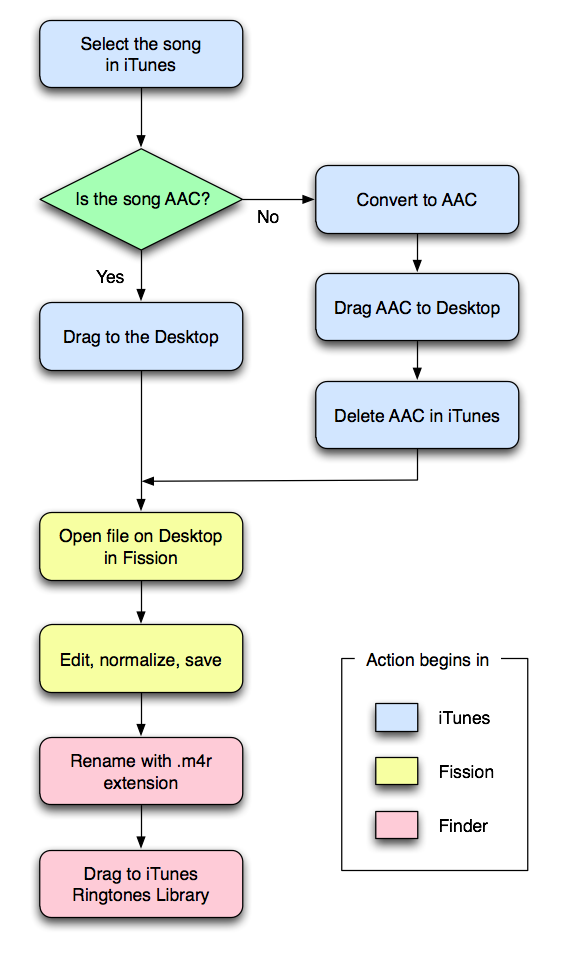
You can see a larger version by clicking on it.
This is a Mac-centric workflow, and it takes advantage of the software I own. I perform the actions in the yellow boxes using Rogue Amoeba’s Fission audio editor, but you could substitute any sound file editor, like Freeverse’s SoundStudio or the free Audacity or whatever’s popular on Windows.
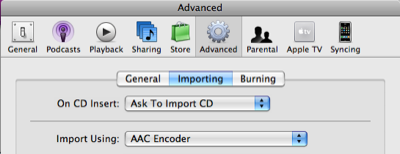
Converting to AAC is done by choosing the Convert Selection to AAC command from iTunes’ Advanced menu. If you don’t see a Convert Selection to AAC item in that menu, it’s because your iTunes Importing Preference is set to use a different encoder. Change the encoder to AAC and the menu item will change, too.
A clip about 10-20 seconds long seems to work well. Once the clip is in the iTunes Ringtone Library, it will transfer to your iPhone the next time you sync.