
SuperDuper! reports with GeekTool
April 11, 2007 at 10:57 PM by Dr. Drang
As promised, here’s how I get excerpts of my SuperDuper! log file to display on my Desktop. The relevant lines of the log file are extracted and edited with this Perl script:
#!/usr/bin/env perl

# Where the log files are kept.
$dir = "$ENV{'HOME'}/Library/Application Support/" .
       "SuperDuper!/Scheduled Copies/" .
       "Smart Update Backup from HD.sdsp/Logs";

# Get the contents of the directory.
opendir DIR, $dir;
@allfiles = readdir DIR;

# Restrict to log files.
@logs = grep /\.sdlog$/, @allfiles;

# Pick out the latest log file.
@logs = reverse sort @logs;
$latest = $logs[0];

# Get the contents of the latest loge file.
open LOG, "$dir/$latest";
@lines = <LOG>;

# Pluck out the lines of interest and delete extraneous text.
push @wanted, grep /Started on/, @lines;
push @wanted, grep /PHASE:/, @lines;
push @wanted, $lines[-2];
grep {s/^\| //; s/\\//; s/ Info \|//;} @wanted;

print join "", @wanted;
I call the script dupersummary and keep it in my ~/bin folder. The directory where the log files are kept was discussed in my earlier post. If you want to use this script, be aware that the name of the penultimate subdirectory (Smart Update…) will depend on the name of your hard disk and whether you’re doing a Smart Update, so you may need to edit that line of the script.
The log files themselves have a very convenient naming scheme:
yyyy-mm-dd hh:mm:ss -zzzz.sdlog
By using a four-digit year and two-digit months and days (with leading zeros when necessary), SuperDuper’s programmers have made the alphabetical sorting of the files the same as chronological sorting. My script takes advantage of this to get the most recent log file. The line
@logs = reverse sort @logs;
sorts the file names and then reverses their order, putting the most recent log file at the top of the list (in $logs[0]).
As I mentioned in the earlier post, the log file is in RTF format. As it turns out, except for a few header lines at the top and a trailing line with a closing brace at the bottom, the log file is plain text with no formatting instructions. My script grabs the lines that:
- have the date and time of the backup;
- start each phase of the copying process; and
- end the text of the log file, typically telling me that the copying was successful. (In fact, I’ve never seen a log file for a failed backup, so I’ve made some [reasonable, but possibly incorrect] assumptions in writing this part of the script. Maybe I should unplug my backup disk once to see what a failed log file looks like.)
The last grep command in the script deletes some extraneous (for my purposes) text in the lines. The extracted and cleaned-up lines are then sent to STDOUT.
This is where GeekTool comes in. I have GeekTool run this command every few hours and put the output in the upper left corner of my Desktop. The result is something that looks like this:
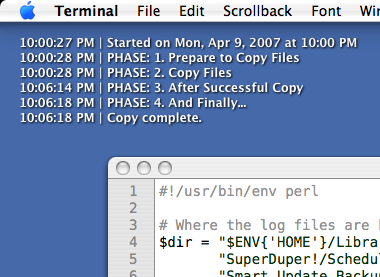
So now a single glance tells me that last night’s scheduled copy went well and my data is safely backed up.